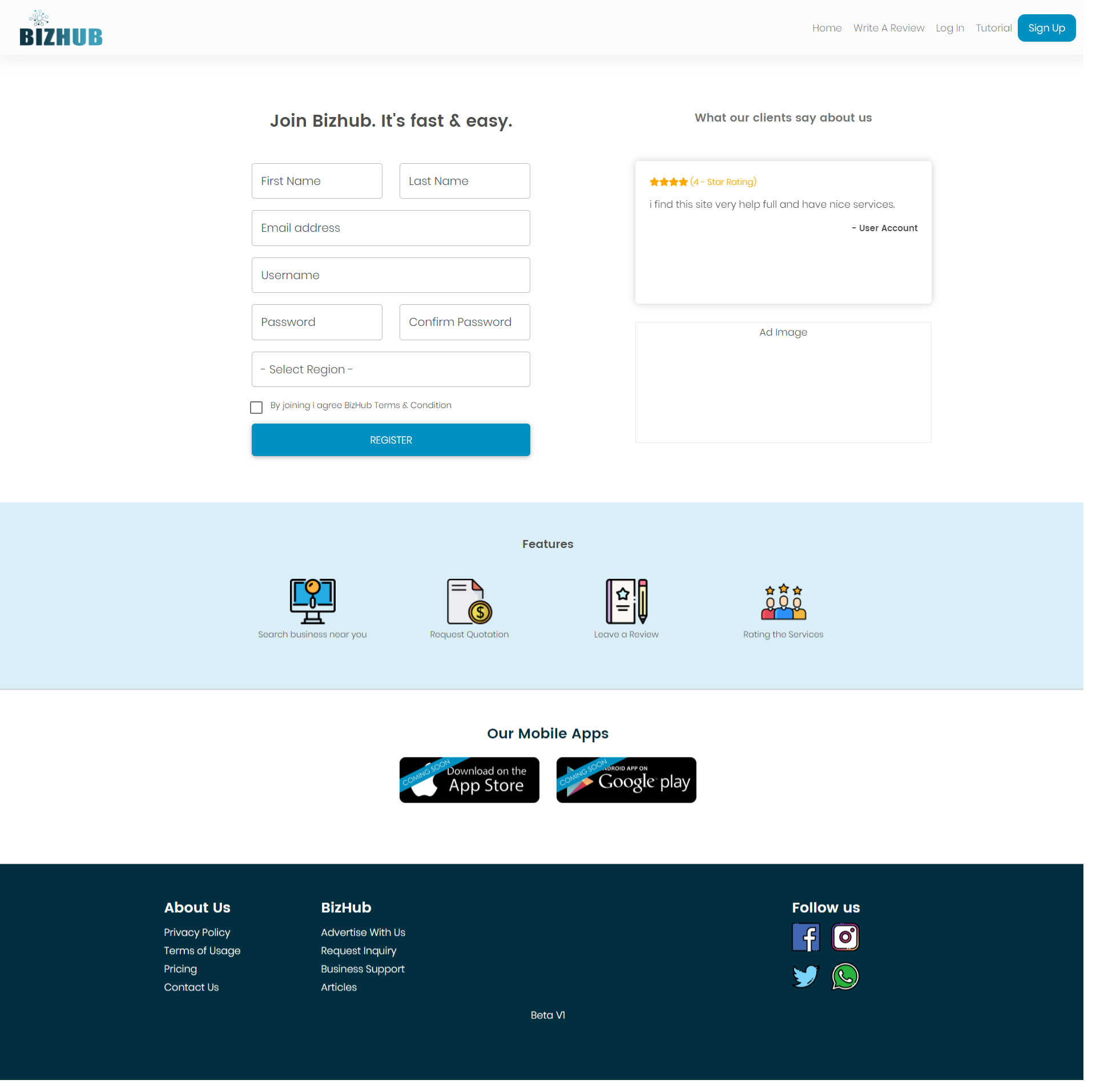
How To Register Yourself on Bizhub
- Click on Signup button on top navbar
- You will see a form requiring you to fill your personal information
- Enter details (FirstName, LastName, Username, Email, Password and Select Region)
- Check Terms and Conditions checkbox
- Finally hit signup button
- You will receive an verification email on your entered Email address
- After clicking on link provided in email will confirm and redirect you to login page
How to Claim Your Business
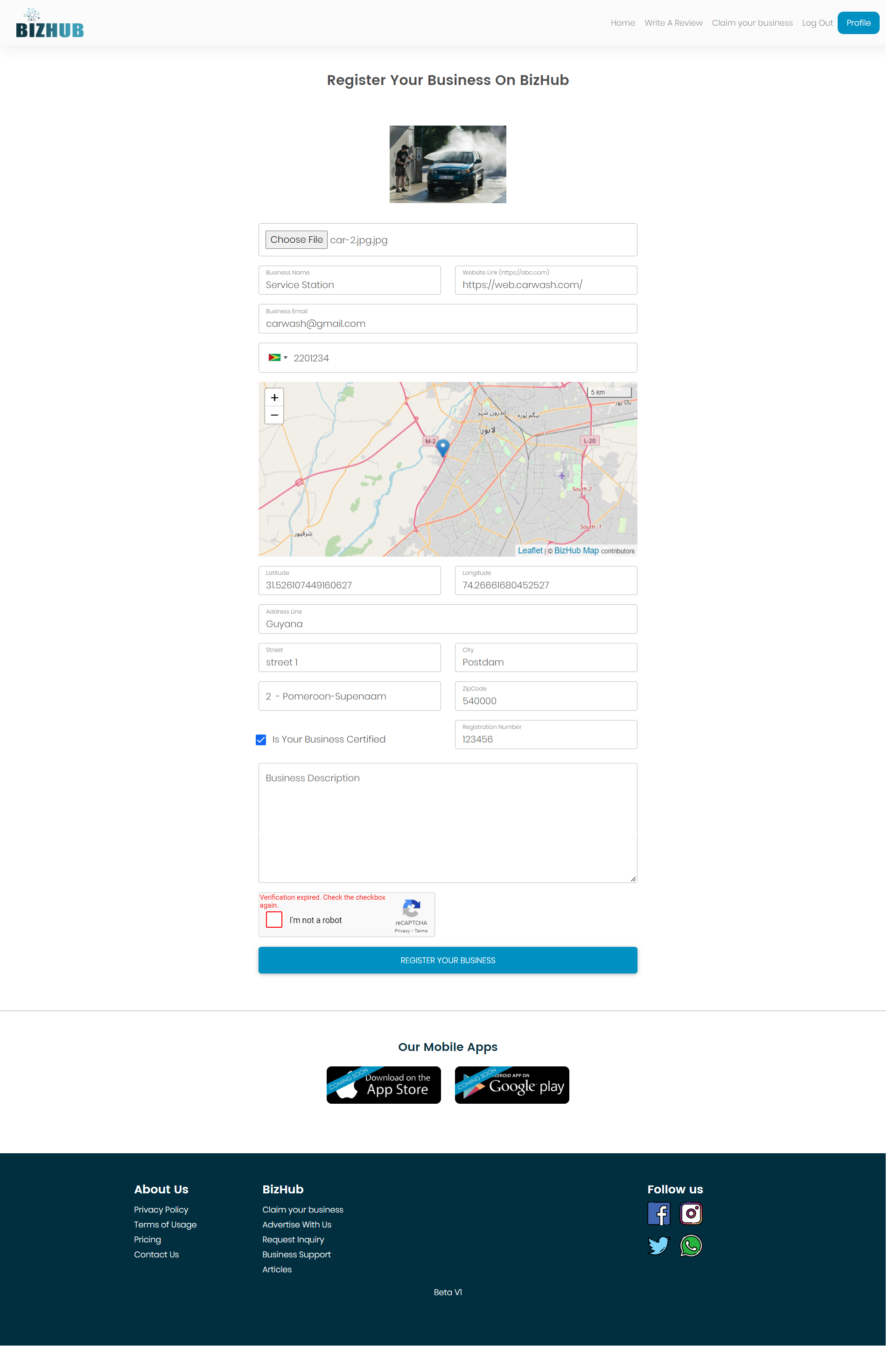
- Click on `Claim Business` Button on Top Navbar
- You will see a form requiring you to fill all your Business information
- Enter Details (Business Logo, Business Name, Business website Link, Business Email, Contact Info, Business Location, Business complete address, Business certification number)
- Check captcha Verification
- Click on Register your business button
- After that you will receive a verification code on your provided phone number
- Finally your business will be created and you will redirected to homepage as a Business user
- Remember you are on free plan and can upgrade you plan anytime
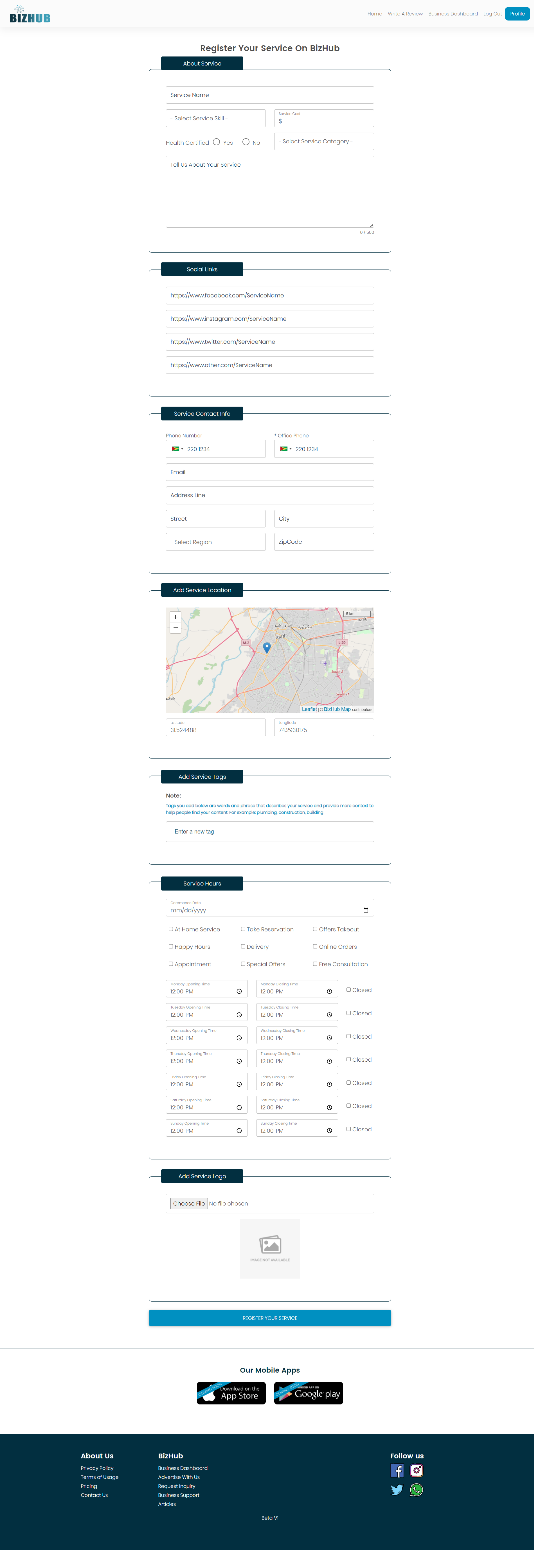
How to Add your service after Business registartion
- When you moved on Business Dashboard screen at bottom of business card you will find a Button "Create New Service"
- You can see a form with Service information
- Enter Details Like (Service Name, service skill level, service cost, service category, social Links, Service Contact information, Service Location, Service Hours, service Logo )
- Check all the information entered correctly carefully
- Click on register business and you will moved to business dashboard. Your created service will be there.
- After that you will see service card on business dashboard where you find three buttons Update | Delete | Details with help of these button you can remove update and watch entered service details
- With standard plan you can create only three services if you want to add more service you need to upgrade your business plan. You can upgrade your plan by click on button upgrade plan which is available in business dashboard card.